How to Convert Spotify to MP3 on All Devices (10+ Easy Ways)
By Iris Holmes
Updated on December 23, 2025
Many users want to convert Spotify to MP3 so they can listen offline on any device, such as MP3
players, car stereos, or USB drives. However, Spotify downloads are protected by DRM and can only
be played within the official app.
If that sounds like you, you've come to the right place! In this guide, we will show you how to convert Spotify songs to MP3 with up to 320kbps safely and efficiently. We will start with a professional Spotify to MP3 converter and then guide you through all 10+ practical methods, covering desktop software, online tools, audio recorders, and mobile solutions. Let's get started!
Short Answer: What is the best way to convert Spotify to MP3?
Since Spotify does not officially allow MP3 exports, converting Spotify to MP3 usually requires
third-party tools or recording methods.
Desktop software like TuneFab Spotify Music Converter can offer batch support and 320kbps quality at lightning speed.
Online converters like SpotifyDown work quickly, but they don't support playlists.
For a mobile Spotify to MP3 conversion experience, SpotiFlyer or RoutineHub Shortcut can be used.
For free options, Audacity (record while playing) or spotDL (command‑line) also present a viable solution.
Overview Table: 10+ Effective Ways People Convert Spotify to MP3 Today
Quick Verdict:
Best for 320kbps Batch Conversion: TuneFab Spotify Music Converter
Best Free Desktop Tool: Audacity
Best Online/Cross-Device Solution: SpotifyDown
Most Flexible for Tech-Savvy Users: spotDL
Finding a reliable way to convert Spotify to MP3 can be overwhelming with so many tools claiming to work. To help you quickly make an informed decision, our team spent over 50 hours testing the frequently mentioned options by community users. Here is the overview table.
All Spotify songs, playlists, albums, and podcasts
Songs or playlists from Spotify, YouTube and SoundCloud
Spotify songs
Songs, playlists, and albums from Spotify
Spotify songs
Any audio content
Any audio content
Spotify songs
Spotify songs
Songs or playlists from Spotify
Songs or playlists from Spotify, SoundCloud, etc.
Success Rate (2026 Test)
⭐⭐⭐⭐⭐(Best)
⭐⭐
⭐⭐⭐
⭐⭐⭐
⭐⭐
⭐⭐⭐⭐
⭐⭐⭐⭐
⭐⭐⭐
⭐⭐
⭐⭐⭐⭐
⭐⭐⭐
Music Quality
Original 320kbps
Medium
High
Medium
Medium
High
High
High
High
High
High
Conversion Speed
35X faster
Medium
Medium
Medium
Slow
Same as the song duration
Same as the song duration
35X faster
Medium
Medium
Medium
Batch Conversion
ID3 Preservation
Ad-free
(for Spotify Free)
(for Spotify Free)
Stable
(no longer maintain)
(sometimes crashes)
(sometimes crashes)
(sometimes crashes)
(sometimes crashes)
(sometimes crashes)
(sometimes crashes)
(sometimes crashes)
(sometimes crashes)
(sometimes crashes)
As you can see, all Spotify to MP3 converters have their own pros and cons. Next, let's move on to explore the right one to save Spotify songs as MP3s for offline listening.
Disclaimer:
Before exploring these tools, it is important to note that the methods below are for saving Spotify music as MP3 files for personal offline listening only. They are not for redistribution or commercial use, so make sure to always comply with Spotify's terms and copyright laws.
How to Convert Spotify to MP3 with Desktop Software
If you want to batch save Spotify playlists as 320kbps MP3 for personal offline listening outside the official app, desktop software is the most reliable solution as it removes the playback restrictions tied to Spotify tracks. This lets you easily export Spotify songs, playlists, or albums to MP3 files and transfer local audio from your computer to any device you like.
1. TuneFab Spotify Music Converter (Editor's Top Pick✨)
Verdict
Best overall Spotify to MP3 converter for beginners, audiophiles who want to quickly get
high-quality bulk conversion at a fast speed.
Work on
Windows 7/8/10/11, macOS 10.15 or higher.
Pros
- Convert Spotify music to MP3 in batch
- Keep original song quality
- Retain ID3 tags and metadata
- Fast conversion speed to save time
- Flexible customization settings
Cons
- Offer limited functions in the free trial version
- Only work on Windows or macOS.
Safety
Generally safe based on malware scan testing and installation checks. Plus, no bundled
malware or intrusive ads were found in our test.
Success Rate
99.8% (Highest among tested tools).
Editor's Rating
⭐⭐⭐⭐⭐ (4.8/5)
Among all tested tools, TuneFab Spotify Music Converter is our top pick to convert Spotify to MP3 seamlessly, especially for large playlists and music libraries. It features a built-in Spotify web player, enabling both Spotify Premium and Free users to batch save songs, albums, and playlists from Spotify to MP3 with the original quality up to 320kbps. Whether you want to store Spotify music locally on your PC, a USB drive, phone, or car player, TuneFab handles everything in one stop.
With so many features, it is no surprise to see it as one of the best Spotify to MP3 converters considered by many people. Next, follow the steps below to convert unlimited Spotify to MP3 without Spotify Premium.
Step 1. Download and Launch Spotify to MP3 Converter
TuneFab Spotify Music Converter supports Windows 7/8/10/11 and Mac OS X 10.14 or higher. Choose the right version and download it from the download button above on your computer. After the installation, launch the program, and enter the Spotify service.
Step 2. Log in to Spotify Web Player and Analyze Playlist
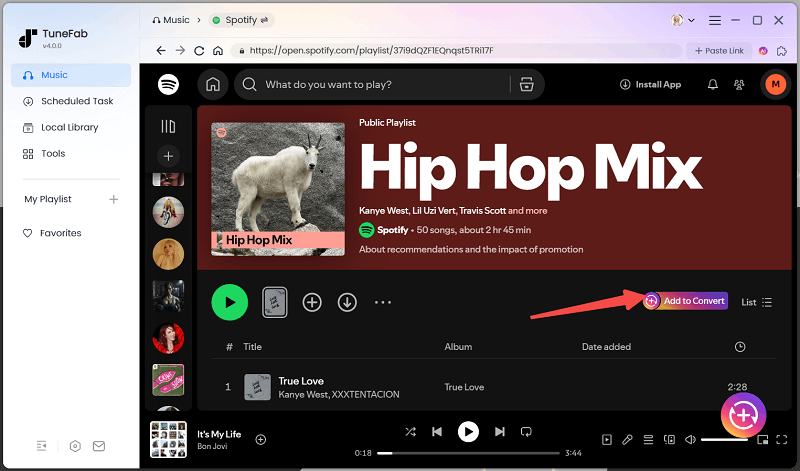
In the built-in Spotify web player, log in to your Spotify account. Locate the song, playlist, or album you need to convert and click "Add/Add to Convert" to parse and load them into the conversion list.
Step 3. Choose MP3 as Spotify Output Format
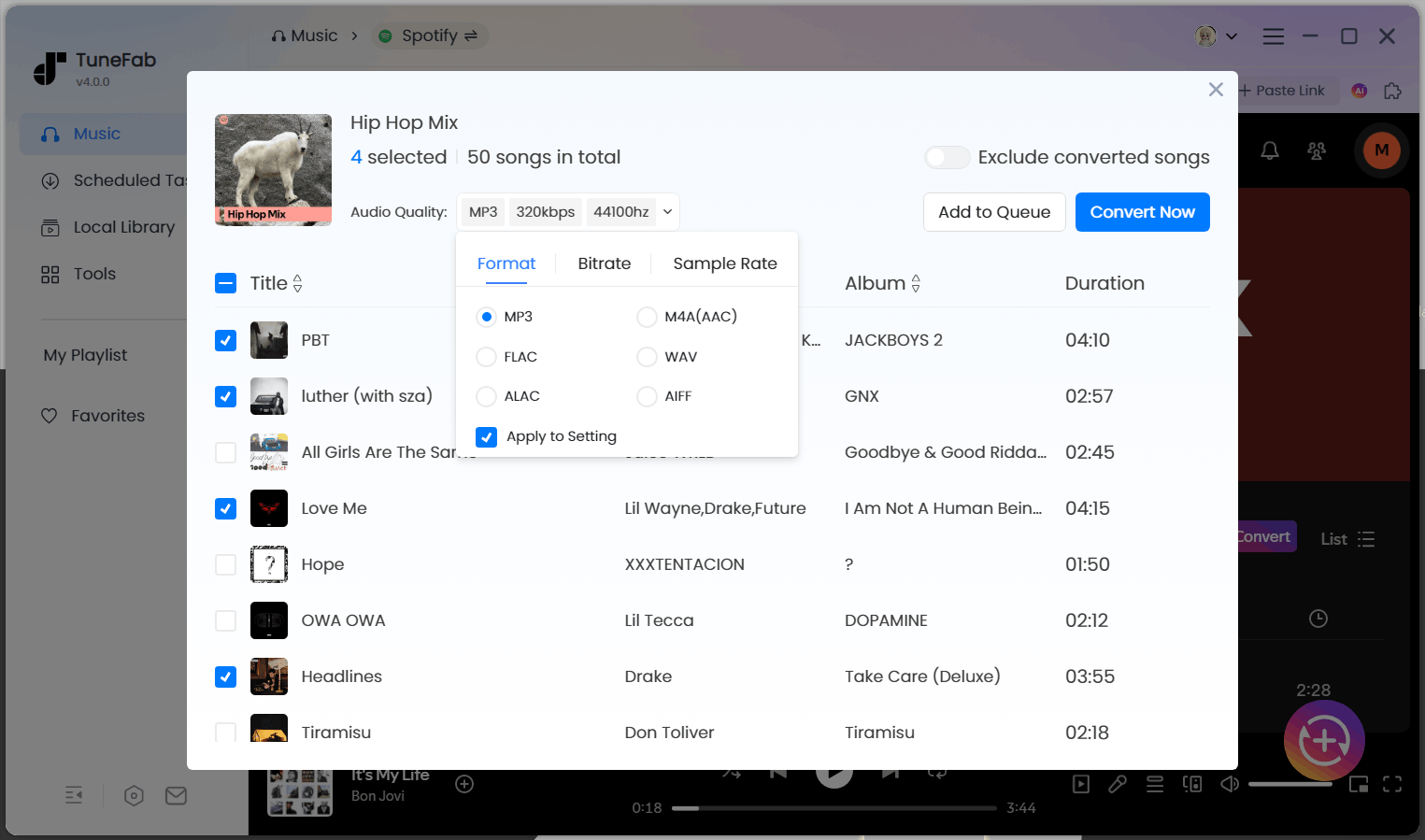
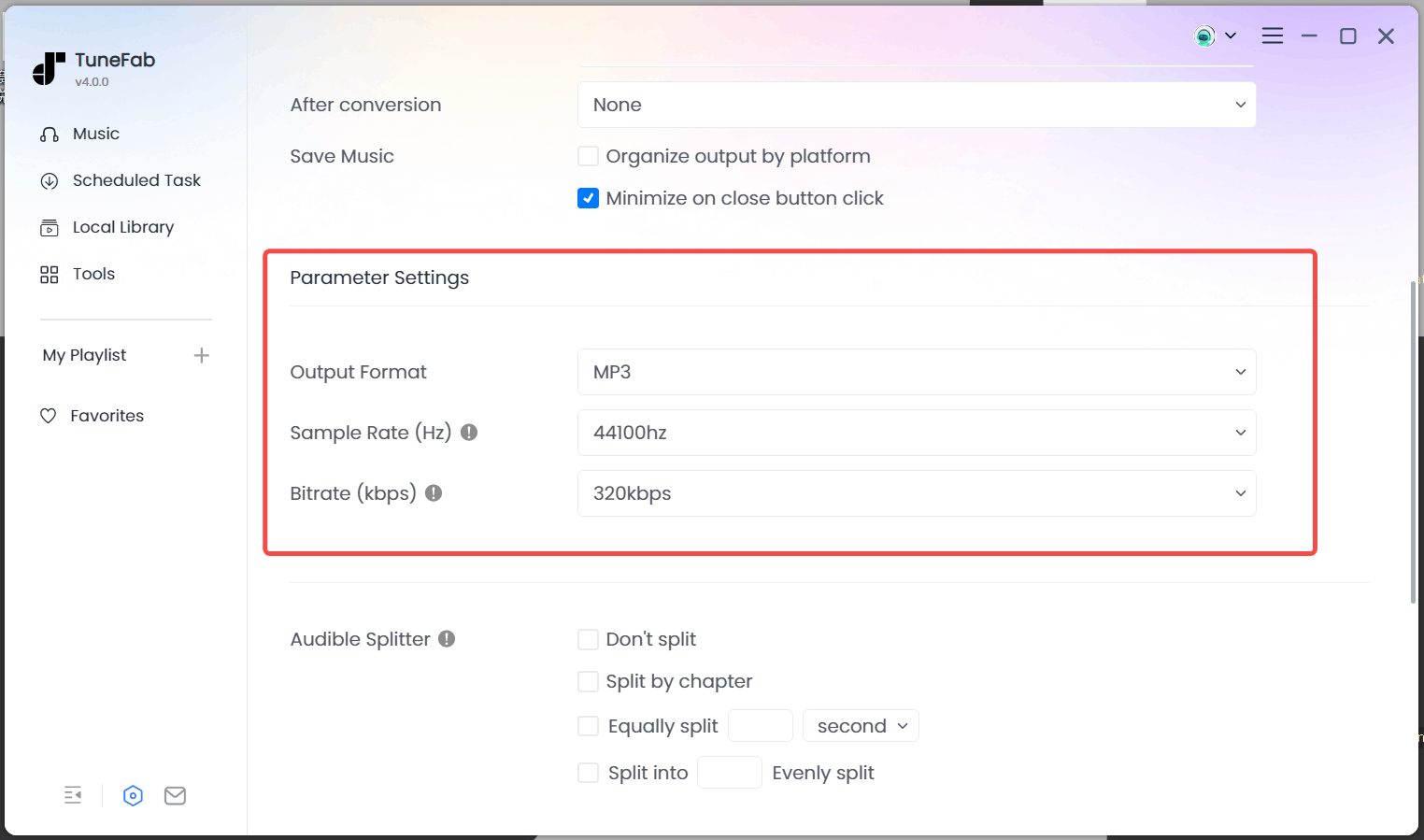
When all Spotify songs are added, you can change the output format (MP3, M4A, WAV, FLAC, ALAC, and AIFF). The default output format is MP3. If you want, you can change the song bitrate and sample rate, then "Apply to Setting" so that every song you convert will be of high quality.
Note that you may consider converting Spotify to FLAC, ALAC, AIFF, or WAV if you want a more lossless compression with higher quality than MP3 does.
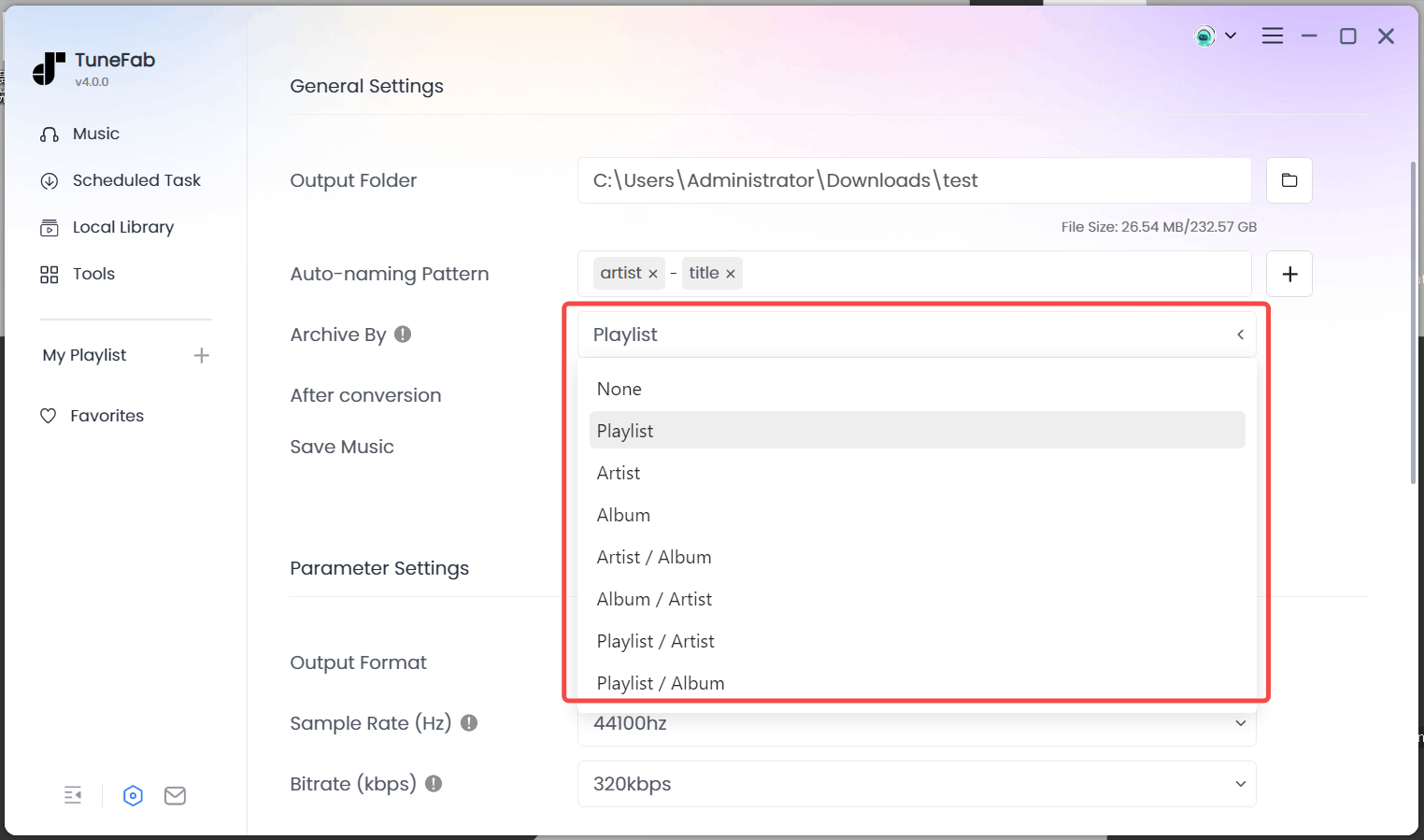
Go to "General Settings" by clicking the gear icon (Optional), you can change the default output folder and output presets for audio file title and folder archive. If you don't make any changes, then it will store all the converted Spotify music by default.
Step 4. Start to Convert Spotify to MP3
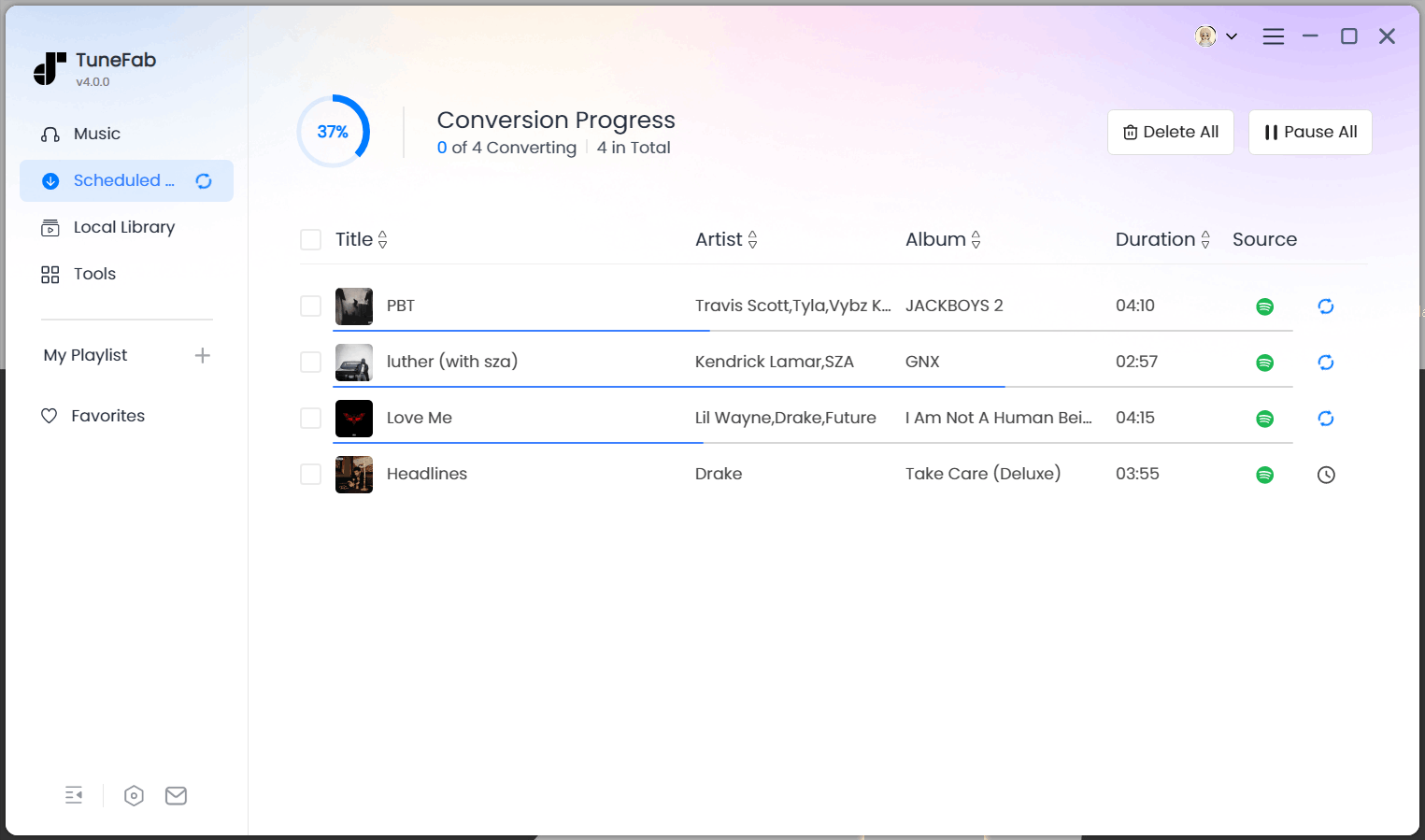
Now, you can just click on the "Convert Now" button and the program will start converting Spotify playlists or songs to MP3. When the whole conversion is finished, you can transfer the songs to any compatible device you like or even add them to Google Slides.
Pro Tip: If you use multiple streaming platforms, TuneFab All-in-One Music Converter is a great alternative to save music for offline listening from Apple Music, Soundcloud, Amazon Music, and more.
How to Convert Spotify Music to MP3 Using Online Tools
Besides using desktop tools to save Spotify tracks as MP3, using an online Spotify to MP3 converter directly on any computer system is also a good option when you need a quick solution without installing any app. Below are 2 user-friendly online tools we'd like to introduce to you.
1. SpotifyDown
Verdict
It is a simple Spotify link to MP3 online tool, best for users who want to
quickly download a couple of MP3 songs without installing software.
Work on
Web
Pros
- It's free and easy to use
- Get MP3 Spotify downloads with ID3 tags retained
Cons
- Can't convert playlists/albums/podcasts from Spotify to MP3
- Ads pop up on the main interface
Safety
Medium. Require no login, but contain ads.
Success Rate
70%
Editor's Rating
⭐⭐⭐☆ (3.5/5)
Spotifydown is
an online converter that can help you quickly convert your favorite Spotify tracks to MP3 with
a simple click. With this program, no matter if you are a Spotify Free user or a premium
user, you can finally get MP3 Spotify downloads with relatively high quality and ID3 tag
preservation.
Note: It's a pity that this online Spotify to MP3 converter can't help you
convert Spotify playlists, albums, or podcasts to MP3. And like most online tools, many
pop-up ads on its webpage can't protect your computer from malware attacks. Therefore,
if you have a large library or want a security-guaranteed program, then desktop
software TuneFab Spotify Music Converter can be your ideal pick.
Next, let's take a look at how to convert Spotify to MP3 online for free using SpotifyDown.
Step 1.
Launch the Spotify App or navigate to the Spotify website, and search for the Spotify songs that you want to convert to MP3.
Step 2.
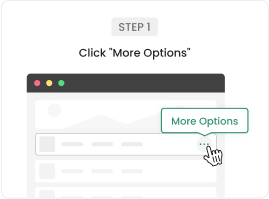
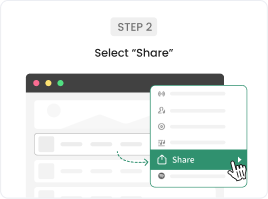
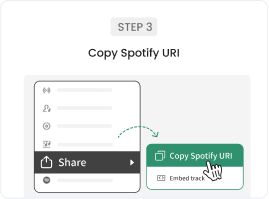
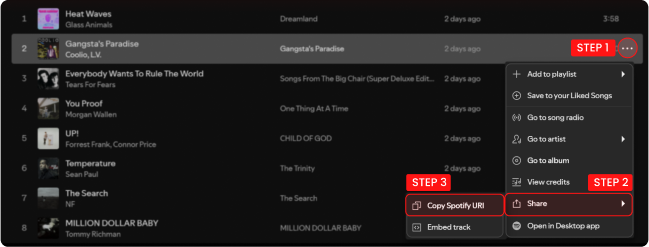
Click the three dots near the song and click "Share" to choose "Copy Link".
Step 3.
Paste the copied link in the text input and click "Download". Then it will start converting Spotify songs to MP3 automatically.
2. Spotify-downloader
Verdict
A powerful online Spotify playlist to MP3 converter for casual users who don't mind ads.
Work on
Web
Pros
- It's free and easy to use
- Supports Spotify playlist to MP3 conversion, and you can directly get ZIP files of them
- Get MP3 Spotify downloads with ID3 tags retained
Cons
- You need to watch ads before conversion
- It doesn't work sometimes
Safety
Safe to use without malware risks, but ads included.
Success Rate
65%
Editor's Rating
⭐⭐⭐☆ (3.2/5)
Spotify-downloader also offers a viable way to convert Spotify playlists to MP3 for free with no software. Simply paste the URL of a Spotify playlist, and it can parse the data and allow you to directly download an entire playlist as a ZIP file, without the need for manual clicking. However, you need to watch ads before downloading, and sometimes downloads may fail. Therefore, for a better user experience, desktop software like TuneFab Spotify Music Converter would be a preferable choice.
Just like the steps above, visit the Spotify web player, and copy the URL of your target playlist.
Step 2.
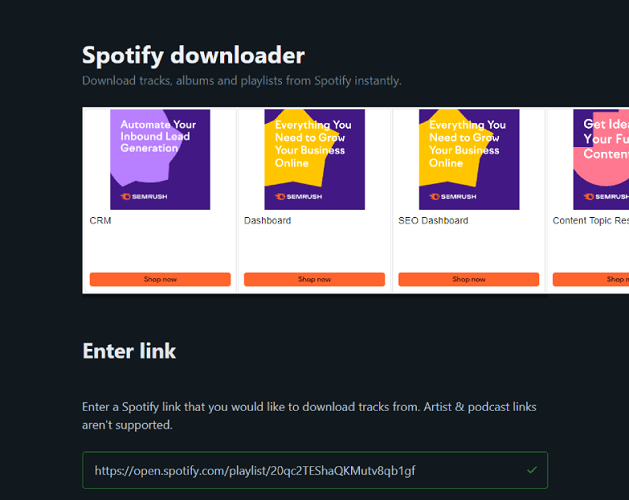
Turn to Spotify-downloader's page, paste the URL in the search bar, and wait for it to analyze the data.
Step 3.
After the website successfully reads it and shows you the result page, you can click the "Download ZIP" option to get all Spotify MP3 downloads, or scroll right to convert songs from Spotify to MP3 one by one.
3. Spotify Deezer Music Downloader
Verdict
It is a browser add-on-style Spotify to MP3 converter that directly embeds download buttons on the official web player.
Work on
Web
Pros
- One-click conversion of Spotify to MP3, no need to copy and paste links
- Completely free of charge
- Save Spotify tracks as MP3 online without a premium
Cons
- Does not support batch conversion
- Only saves songs as MP3
- Cannot convert Spotify albums, playlists, podcasts, etc
Safety
Low. No any support.
Success Rate
30%
Editor's Rating
⭐⭐ (2/5)
Sometimes, you just want to get the job done right in your browser without visiting third-party
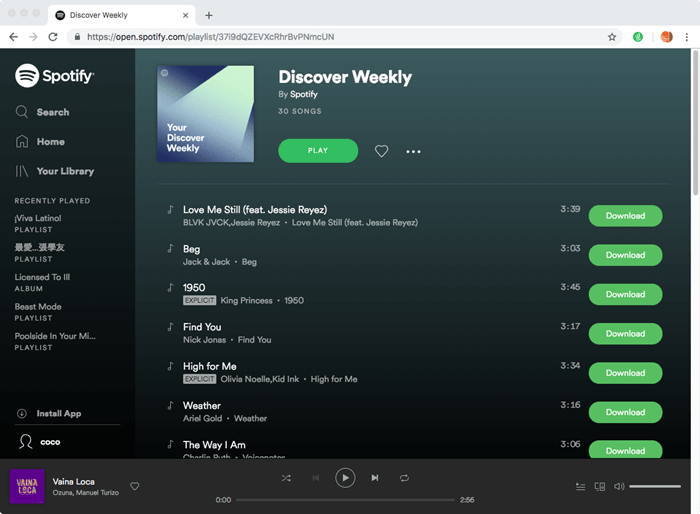
websites. In this case, Spotify Deezer Music Downloader was a popular free choice. This extension integrates directly into your browser, automatically adding a "Download" button next to tracks in the Spotify web player, allowing you to convert Spotify songs to MP3 online for free.
However, it is important to note that the original extension has been removed from the Chrome
Web Store, so you can only download the old versions or clone options from third-party
platforms like GitHub and Chrome-Stats. If you still wish to try this free Spotify to MP3
converter extension, here are the specific steps:
⚠️ 2026 Update: This extension is currently highly unstable, with a low success
rate. This is mainly due to Spotify's "Development Mode" security update in February 2026,
which restricts Web API access (Premium account required) and causes widespread "Audio Not
Found" errors on most Spotify downloader extensions.
Step 1.
Download Spotify Deezer Music Downloader from a reliable third-party source.
Step 2.
In Chrome, navigate to chrome://extensions and toggle on Developer mode.
Step 3.
Click the "Load Unpacked" button to install this Spotify to MP3 converter extension to your Chrome toolbar.
Step 4.
Visit the Spotify web player and log in to your account.
Step 5.
Find the song or playlist you want to convert, then click the "Download" button next to the song. The plugin will automatically extract the audio from Spotify online and begin the conversion.
How to Rip Music from Spotify to MP3 via Audio Recorders
If you only want to capture short Spotify song clips to use as background music for video editing or to share with others, you can opt for audio recorders for Spotify. Here are 2 workable tools for you to choose from.
1. Cinch Audio Recorder
Verdict
Perfect for those who want to capture a simple Spotify to MP3 recording without technical setup.
Work on
Windows, Mac
Pros
- It's free
- Easy to operate
- Convert Spotify to MP3 in 320kbps
- Keep all ID3 Tags
Cons
- Can't convert Spotify songs in batches
- Time-consuming
Safety
Safe when downloaded from the official source. No Spotify account login required.
Success Rate
95% (Depends on internet stability)
Editor's Rating
⭐⭐⭐⭐ (4/5)
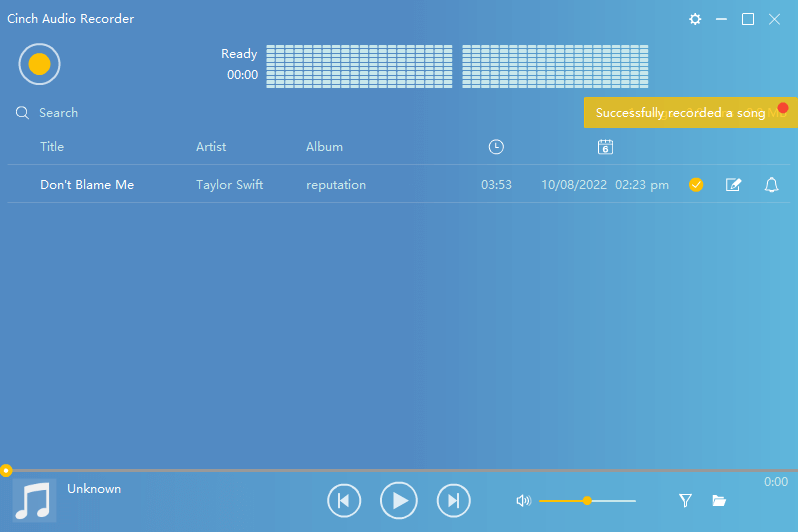
Cinch Audio Recorder is a lightweight audio recorder for Spotify available on Windows and macOS. Adopting advanced recording technology, this professional audio recording tool can flexibly capture sound from your computer. There is no doubt that you can use it to convert Spotify to MP3 easily.
Using Cinch Audio Recorder to record Spotify Music to MP3 is easy. It can record the audio playing from your computer in real time and allows you to edit recordings. More surprisingly, you can also save the recorded songs at 320kbps with the ID3 tags & metadata well preserved. But it's obvious, you can only record one song at a time, which is more time-consuming than any batch Spotify converter introduced before. Now let's see how to use it to record Spotify songs to MP3.
Step 1.
Free download Cinch Audio Recorder and install it on your computer.
Step 2.
Launch the program and simply open the Spotify web player or app. Due to the fact that streaming music from Spotify web player is in 128kbps, if you wish to convert Spotify music to MP3 in 320kbps high quality, it's better to use the Spotify app with a premium account logged in.
Step 3.
Navigate to the song you wish to convert, hit the round record button on the top left of the recorder, then play the music. When the music is playing, start recording it with Cinch Audio Recorder. When done, click the "Stop" button to end the recording.
2. Audacity
Verdict
Best for advanced users who need full control over editing after Spotify to MP3 conversion. without technical setup.
Work on
Windows, Mac, Linux
Pros
- It's free and open-source
- Supports Windows, macOS, and Linux operating systems
Cons
- Requires manual setup for recording
- May capture external noise during recording
- Lower audio quality compared to directly extracting music
- Requires manual recording for each track (low efficiency)
Safety
Safe and secure.
Success Rate
95% (Depends on internet stability)
Editor's Rating
⭐⭐⭐⭐ (4/5)
Audacity is a free, open-source audio recording and editing software widely used for various audio tasks. To get Spotify songs in MP3 format, Audacity works by recording the playback of Spotify music in real time. You can manually set up the recording, capture the song as it plays, and then export Spotify in MP3 format. Additionally, Audacity offers powerful audio editing features like trimming, adjusting volume, and removing background noise, making it one of the best Spotify Music recorders.
Note: Recording Spotify songs can be time-consuming, complicated, and may result in lower audio quality. For higher audio fidelity practicality and convenience, using a professional desktop tool like TuneFab Spotify Music Converter would be a more reliable choice.
Install Audacity on your computer. Launch it, go to "Edit" > "Preferences" > "Devices", and choose your system's audio as the recording device under the "Recording" section.
Step 2.
Open Spotify and play the song you want to record. Make sure no other sounds are playing on your system. Then, go back to Audacity, press the red "Record" button to capture the song, then press "Stop" once it's finished.
Step 3.
Go to "File" > "Export" > "Export as MP3", choose a location, and save the file. Optionally, edit or trim before exporting.
How to Convert Spotify to MP3 via Mobile Programs
To manage Spotify music on computer using TuneFab Spotify Music Converter and then transfer it to a phone is the most stable path. However, if you prefer a direct mobile solution to get Spotify songs in MP3 format, these apps can help you build an offline Spotify music library on the go.
1. SpotiFlyer (For Android)
Verdict
Ideal for those who want to convert music from Spotify to MP3 on Android devices with no cost.
Work on
Android, Windows, MacOS, Linux.
Pros
- Work on various device systems.
- Provide MP3 downloads with high quality and full ID3 tags.
- It's totally free.
Cons
- Lack of maintenance causes it to fail to convert sometimes.
- Find downloaded audio sources from YouTube Music and JioSaavn.
Safety
Safe. No virus, bundle, or malware after scan.
Success Rate
75%
Editor's Rating
⭐⭐⭐☆ (3.8/5)
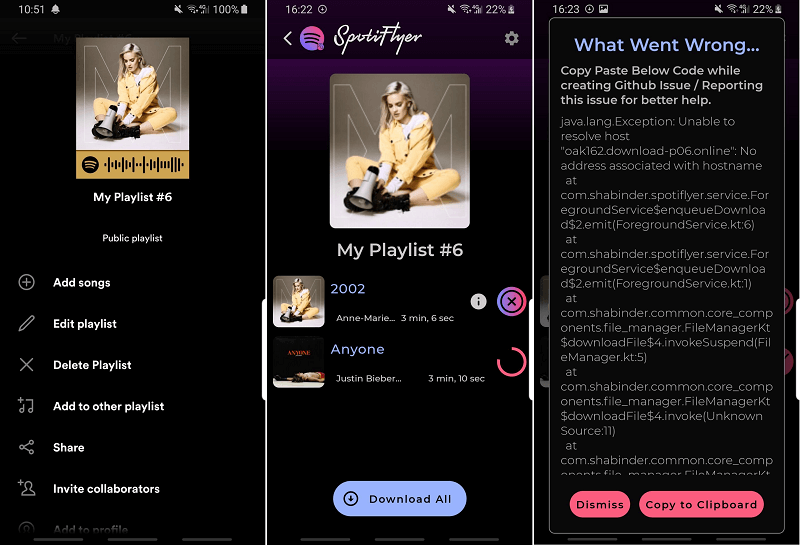
SpotiFlyer is a free and open-source music downloader that allows you to download songs, albums, playlists, and podcasts from a wide range of music platforms, like Spotify, YouTube Music, SoundCloud, and Gaana. With this Spotify to MP3 program, you can output high-quality 320kbps MP3 files for Spotify, retain full ID3 tags, and require no complex steps.
In our testing, however, it usually fetches audio from alternative sources, so the output quality can be inconsistent. To convert Spotify to MP3 via SpotiFlyer, you can follow these steps:
Step 1.
Get the download source from Github and use the provided link to download and install SpotiFlyer to your Android device.
Step 2.
Run the Spotify app to copy the URL of the song you want to download.
Step 3.
Back to SpotiFlyer and paste the URL to the designated field. Then click "Download" to start downloading Spotify music to MP3.
2. RoutineHub Shortcut (For iOS)
Verdict
A free Spotify to MP3 iPhone solution using Siri Shortcuts with customizable workflows, but highly unstable due to frequent API changes.
Work on
iOS 12 or later (iPhone/iPad)
Pros
- It offers an initiative bot interface.
- You can customize the workflows as you prefer.
- Free for you to convert Spotify to MP3
Cons
- Sometimes, it fails to be used.
- Only supports downloading a maximum of 30 songs
Safety
Safe
Success Rate
40%
Editor's Rating
⭐⭐ (2/5)
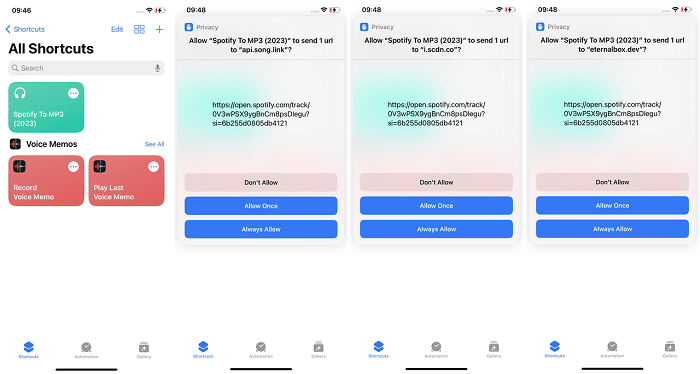
On iOS devices, some users rely on Siri Shortcuts shared on RoutineHub to export Spotify songs to MP3. "Spotify To MP3" is one of the shortcuts it provides, enabling you to download Spotify as MP3 files for free with a user-friendly bot interface and automated workflows.
To get MP3 from Spotify via a RoutineHub shortcut, you will need an iPhone or iPad running iOS 12 or later with the Shortcuts app installed, as well as a free RoutineHub account. Once you have all of the necessary components, follow these steps:
Step 1.
Go to RoutineHub to get the shortcut and add it to your device.
Step 2.
Copy the link of the Spotify song that you want to convert on your Spotify app, then paste the URL of the Spotify song into the "URL" field.
Step 3.
Once you enter the shareable link, the Spotify To MP3 Shortcut will begin to analyze and download the song as an MP3 file. Once finished, you can navigate to "iCloud > Shortcuts > Music" to locate the downloaded Spotify music file.
How to Save Spotify Songs as MP3 via Open-source Tools
For tech-savvy users who prefer free, open-source tools and customizable workflows to convert Spotify to MP3, the following 2026 tested open-source solutions are worth considering.
1. spotDL
Verdict
Best for tech-savvy users who prefer a free desktop solution to download Spotify music to MP3 without Premium.
Work on
Windows, macOS, Linux, Android
Pros
- 100% free and open-source
- Outputs high-quality MP3 files with full metadata
- Supports batch downloading from playlists or albums
Cons
- Requires using command-line tools, which may not suit all users
- May occasionally mismatch songs due to YouTube sourcing
Safety
Safe when downloaded from official GitHub sources
Success Rate
80%
Editor's Rating
⭐⭐⭐⭐ (4.5/5)
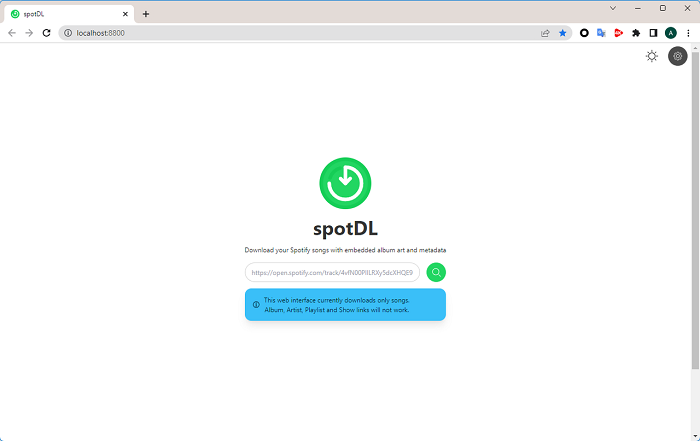
spotDL is an excellent free tool to convert Spotify playlists and single tracks into MP3s on your computer. By matching Spotify metadata with YouTube audio, it efficiently helps you save Spotify songs offline with full ID3 tags. It was initially command-line-based, but spotDL comes with a Web UI built inside it nowadays, so you can now paste Spotify URLs directly into a browser to download songs, bypassing misguided typing in the terminal.
Depending on your flair for technology or the simple visual interface, spotDL is a flexible and quality solution for Spotify to MP3 conversion.
Here's how to convert Spotify to MP3 using spotDL
Step 1.
Download and install the latest version of Python from python.org , and make sure to check the box that says “Add Python to PATH” during installation.
Step 2.
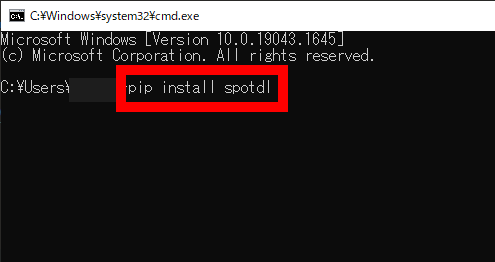
Open the command line tool on your computer: on Windows, press Win + R, type cmd, and press Enter; on macOS, press Cmd + Space, type Terminal, and press Enter; on Linux, press Ctrl + Alt + T.
Step 3.
In the terminal, type pip install spotdl and press Enter to install the tool..
Step 4.
Once installed, run spotdl web in the terminal and press Enter. This will open the spotDL Web UI in your default browser.
Step 5.
In the browser window, paste the Spotify song, album, or playlist URL into the search box and click the search icon.
Step 6.
When the song appears, hit the download button to convert the Spotify link to MP3.
2. Terminal-Based Chimera
Verdict
Recommended for advanced users who want a highly customizable Spotify to
MP3 workflow and multi-platform music source support.
Work on
Windows, macOS, Linux, Android
Pros
- Be compatible with many devices
- Support converting music to MP3 from multiple music services
- A free open-source program
Cons
- The setup of the tool is seriously complicated
- Not suitable for a non-tech-savvy person
Safety
Safe, but setup complexity may increase user-side error risks
Success Rate
75%
Editor's Rating
⭐⭐⭐ (3.5/5)
If you are a tech-savvy user who wants to convert music from Spotify to MP3 with more challenges, you can opt for the Chimera. Based on a command line, this open-source Spotify converter can help you grab tracks from multiple sources of music, like SoundCloud, Tidal, Deezer, Spotify, Google Play Music, Qobuz, and more. It is totally free to use and compatible with Windows, Mac, Linux, and Android. However, there is no GUI app, so you need to set it up from the command line. You can follow the detailed guide below to grasp the idea.
Note: The command-line interface can be quite complex for beginners. Therefore, if you are a non-technical person, then Chimera is not suitable for you. For those who just want to convert tracks from Spotify to MP3 with simple steps, you can go for TuneFab Spotify Music Converter instead.
Firstly, you need to download the Python with the 64-bit version. Just go to Python's download center to download and get it installed. Make sure you choose the option "Add Python 3.8 to Path", or you need to add the path manually.
Step 2.
Extract the Chimera after downloading the latest version of Chimera. Then you can copy the Chimera folder to your C folder.
Step 3.
Press Windows+R and launch the command prompt by typing CMD. Next, type in ''cd[the path to your Chimera]''.
Step 4.
Install the required requirements after typing the following command: pip install -r requirements.txt
Step 5.
Next, launch the Chimera by typing the '' main.py''. Then you can launch the ''Chimera Config page'' from the web browser.
Step 6.
Now, you can type Spotify and then paste the Spotify link to convert and export songs from Spotify to MP3.
Tested Ways That Failed to Convert Spotify to MP3 Converts in 2026 (Not Recommended)
In addition to the proven methods above, we also came across tools that are frequently
mentioned by users on Reddit and the Spotify community that actually don't work for
Spotify to MP3 conversion. These include:
AllToMP3 (No Longer Available)
Verdict
A free, open-source Spotify to MP3 converter for Windows and Mac, but it
is not recommended in 2026, as this tool is highly unstable due to no
active maintenance.
Work on
Windows, Mac, and even GNU/Linux
Pros
- Preserve ID3 tags
- Support batch conversion
- Download songs from YouTube, SoundCloud, as well
- Open-source tool
Cons
- Crash from time to time
- Only support output quality 256kbps
Safety
Safe to use, but it is often reported as non-functional due to outdated development.
Success Rate
45%
Editor's Rating
⭐ (1/5)
AllToMP3 is
a free Spotify to MP3 tool instead of shareware on Windows, Mac, and even GNU/Linux
computers. With it, you can easily paste Spotify track or playlist URLs and extract
audio from Spotify as MP3 in 256kbps. The best part is that the ID3 tags can be
preserved. Also, even though you paste a link to your Spotify playlist, this tool
can get the songs downloaded in batches.
However, it is worth noting that AllToMP3 has not been actively maintained for
a long time. During our testing, it showed unstable performance,
including random crashes and stalled downloads. Thus, for a more
stable desktop solution, it is better to consider the best alternative - TuneFab Spotify Music Converter.
Here's how to download Spotify music to MP3 with AllToMP3:
Step 1.
Open the AllToMP3 website and click the download button according to your computer OS. And install this tool.
Step 2.
Go to the Spotify web player or launch the Spotify app. Log in to it with your account. Copy the link of the song or the playlist you want to download.
Step 3.
Launch AllToMP3, paste the URL into it and hit enter. After a while, the Spotify songs will be downloaded to your computer.
FAQs About Converting Songs/Playlists from Spotify to MP3
1. Why Do You Need to Convert Spotify to MP3?
Many users look for ways to turn Spotify playlists to MP3 because Spotify uses the OGG Vorbis format, which is only playable within its official app. Even with Premium, your downloads are temporary cache files, not permanent local audio. As a result, even if you have found the Spotify download location, you cannot transfer or play those files outside the Spotify app.
By converting Spotify songs to MP3, you can enjoy several advantages:
• Play your favorite tracks on any MP3 player, car stereo, or smart speaker without needing the Spotify app.
• Keep your Spotify music forever, even if your subscription ends.
• Easily manage Spotify local files for activities like DJing, video editing (for personal use), or listening in areas without internet access.
2. Is It Legal to Convert Spotify to MP3 for Personal Use?
That depends. In most cases, saving MP3 files from Spotify for personal,
non-commercial uses only can be considered fair use with low risk. Some
playlists areroyalty-free on Spotify, so you can go and add them to your library for enjoyment or download them for offline listening.
However, any act of selling, redistributing, or monetizing downloaded Spotify
tracks, playlists, or albums will violate copyright rules and Spotify's terms of service.
3. Can You Convert Songs from Spotify to MP3 If Using a Spotify Free Plan?
Yes. The methods provided in this post apply to those who are using either Spotify Premium or Spotify Free. All the methods enable you to convert Spotify to MP3 without premium. However, TuneFab Spotify Music Converter can ensure the best audio quality and batch convert songs, albums, and playlists with ease.
4. How to Convert Spotify Music to MP3 in High Quality?
Generally, only Spotify Premium users can enjoy very high-quality sound (with
a bitrate of 320kbps). But if you convert Spotify to MP3 on TuneFab Spotify
Music Converter, you can get the files with the best Spotify music quality
by setting the sample rate and bitrate. To do so, 1. Click the gear icon on
the bottom left to open "Settings". 2. Go to "Parameter Settings" and select
48kHz for the sample rate, and 320kbps for the bitrate. Then save it.
Conclusion: Which Is the Best Way to Convert Spotify to MP3?
After testing over 10 different methods in 2026, we found that the best way to convert Spotify to MP3 depends on your needs for speed, stability, and audio quality. While online tools may work for quick, one-off downloads, they often struggle with playlist batches and consistent sound quality.
Among all the options tested, TuneFab Spotify Music Converter stands out as a reliable professional solution to save Spotify songs as MP3 for offline listening, process entire playlists at up to 35X speed, and deliver stable, high-quality output. It is a practical solution if you want to store Spotify music locally and keep songs playable outside the app for personal use. Download it today and give it a try.



 Download
 You may give an incorrect URL. Change a URL or try again.L





 Song Name


 Free Download
 Free Download
 Free Download
 Free Download